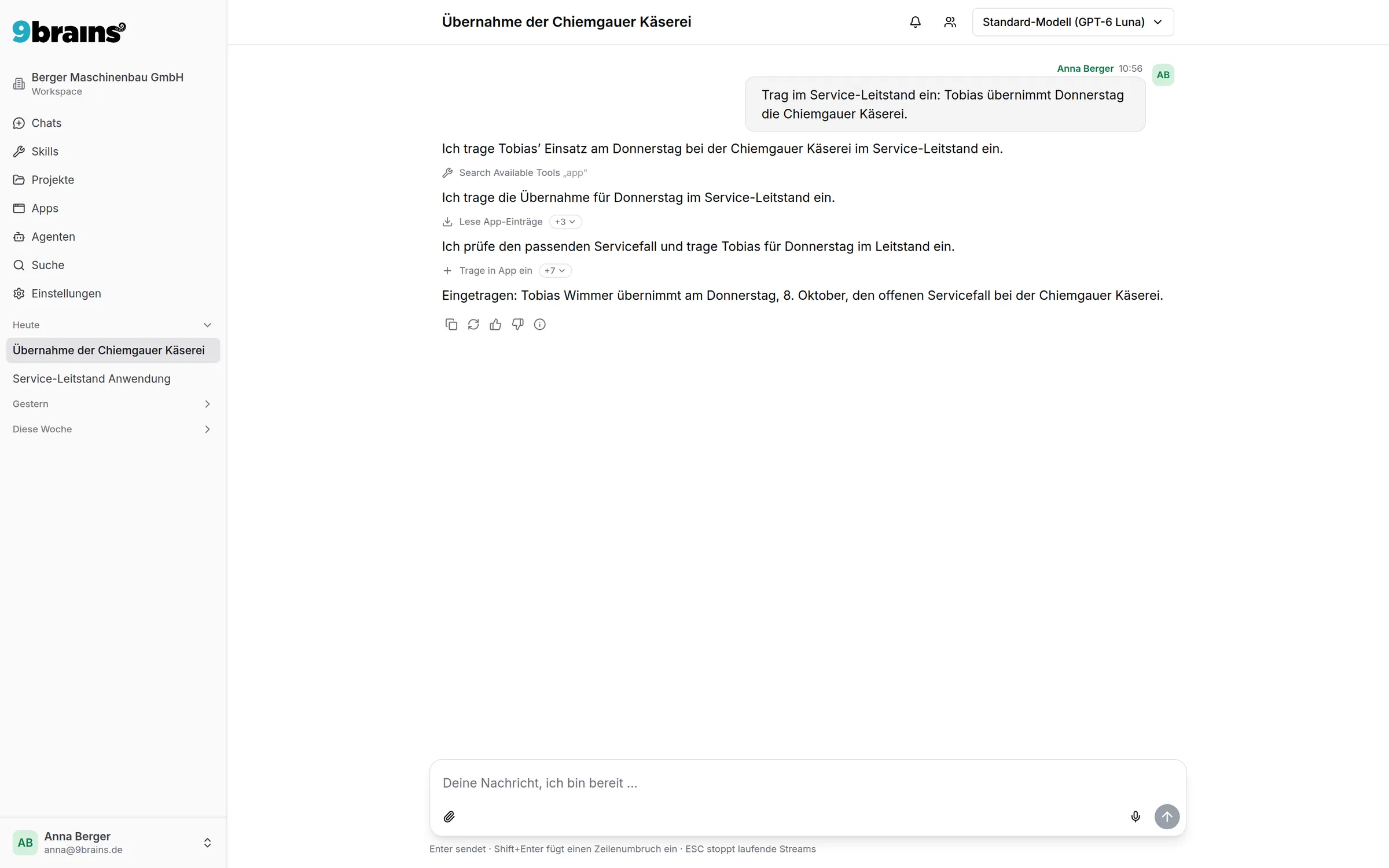
9brains is the GDPR-compliant AI platform for businesses, hosted in a data centre in Germany. The desktop app runs alongside your other programs, with all AI models, agents, projects and your company's knowledge. On top of that, 9brains works with the files in folders you share.
The desktop app has everything 9brains offers in the browser: all AI models, agents, projects, skills and your company's knowledge base. Plus what only becomes possible as a program on your computer.
Work with files on your computer
Share a folder under Settings → Personal Settings. 9brains then reads and searches the files in it and answers your questions about them. 9brains only creates new files or changes existing ones once you approve it in the chat. Anything to be removed goes to the trash.
A heads-up as soon as the answer is ready
Start a longer task and keep working in another program. When the answer is ready, 9brains lets you know with a notification. One click on it opens exactly that chat.
Sign in the way you're used to
Sign-in opens in your browser, so your password manager, passkeys and Microsoft sign-in work as always. Afterwards you stay signed in to the app.
Always up to date, all by itself
The app downloads new versions in the background and installs them the next time you quit. Every version is signed by 9brains GmbH, and the Mac version is also checked by Apple.
Your data stays in Germany, whether you work in the desktop app, in the browser or on the go.
To see which Mac you have, open the Apple menu and choose “About This Mac”: a “Chip” line means an Apple chip, a “Processor” line means an Intel processor.
Open the downloaded file and drag 9brains into the Applications folder.
To see which processor your PC has, open Settings → System → About and look at “System type”: “x64-based processor” means Intel or AMD, “ARM-based processor” means ARM.
Open the downloaded file and follow the setup assistant. You don't need administrator rights. If Windows shows a blue notice, choose “More info” and then “Run anyway”. It names 9brains GmbH as the publisher.
The links always lead to the latest version. Once installed, the app keeps itself up to date.
Getting started
Three steps to the desktop app
01
Create an account in the browser
Sign-up and licence purchases run through the website. Try 9brains for free or get invited by your company.
02
Install the app
Download the right version for your Mac or Windows PC and install it.
03
Sign in with your browser
Click “Sign in with your browser” in the app and sign in as usual. Your chats, agents and projects are there right away.
FAQ
Frequently asked questions about the desktop app
Does the desktop app cost extra?
No. The desktop app is included in every plan, including the free trial. You use your existing 9brains account and don't need an additional licence.
Which version do I need?
For a Mac with an Apple chip, which means all Macs from late 2020, take the Apple chip version; for older Macs, the Intel processor version. For Windows PCs with an Intel or AMD processor, which is almost all of them, take the Intel and AMD version. For laptops with an ARM chip, such as Snapdragon, take the ARM version. The Intel and AMD version also runs there, but only emulated and noticeably slower.
How is it different from 9brains in the browser?
Chats, agents, projects, skills and the knowledge base are the same on every device. The desktop app adds shared folders, notifications as soon as an answer is ready, and a window of its own that you reach from the Dock or the taskbar.
What is 9brains allowed to do with my files?
9brains can only reach the folders you share under Settings → Personal Settings. The app stores which folders those are on your computer only. In these folders, 9brains reads and searches files. It only creates or changes a file after you approve it in the chat, and anything to be deleted goes to the trash. Hidden files and folders (such as .ssh or .env) and the folders of the system and programs always stay out of reach.
Where is my data processed when I use the desktop app?
Exactly as in the browser: your data is stored exclusively with us in Germany. When 9brains reads a file from a shared folder in a chat, its content is treated like a file you upload to the chat. The app shows no ads and does not analyse your usage for advertising.
Can I sign up in the desktop app?
No. You can only create an account and buy licences in the browser. Afterwards you sign in to the app through your browser, with the same credentials as always.
Do I need administrator rights to install it?
Not on Windows: the app installs into your user account. On a Mac you drag 9brains into the Applications folder, as with any other program.
How do I get updates?
Automatically. The app checks for a new version at start-up and every four hours after that, downloads it in the background and installs it the next time you quit. On a Mac, quit 9brains with ⌘Q for that; closing the window is not enough. On Windows, closing the window is enough.
No 9brains account yet?
Create your account in the browser, try 9brains for free and then sign in to the desktop app.